Networking
Modern applications rarely work in isolation — they fetch data from web services, submit forms, consume APIs, and communicate with the outside world. In this lesson you'll learn how to make HTTP requests from HyperXTalk, handle JSON responses, send data with POST, and deal gracefully with network errors.
- Fetch data from a URL using
get URL - Parse JSON responses using
JsonImport - Send data to a server using
post data to URL - Set HTTP headers with
set the httpHeaders to - Handle network errors by checking
the result
🌐 GET Requests
The simplest networking operation is a GET request — fetching the contents of a URL. HyperXTalk makes this as easy as a single line. The response is placed into the special variable it:
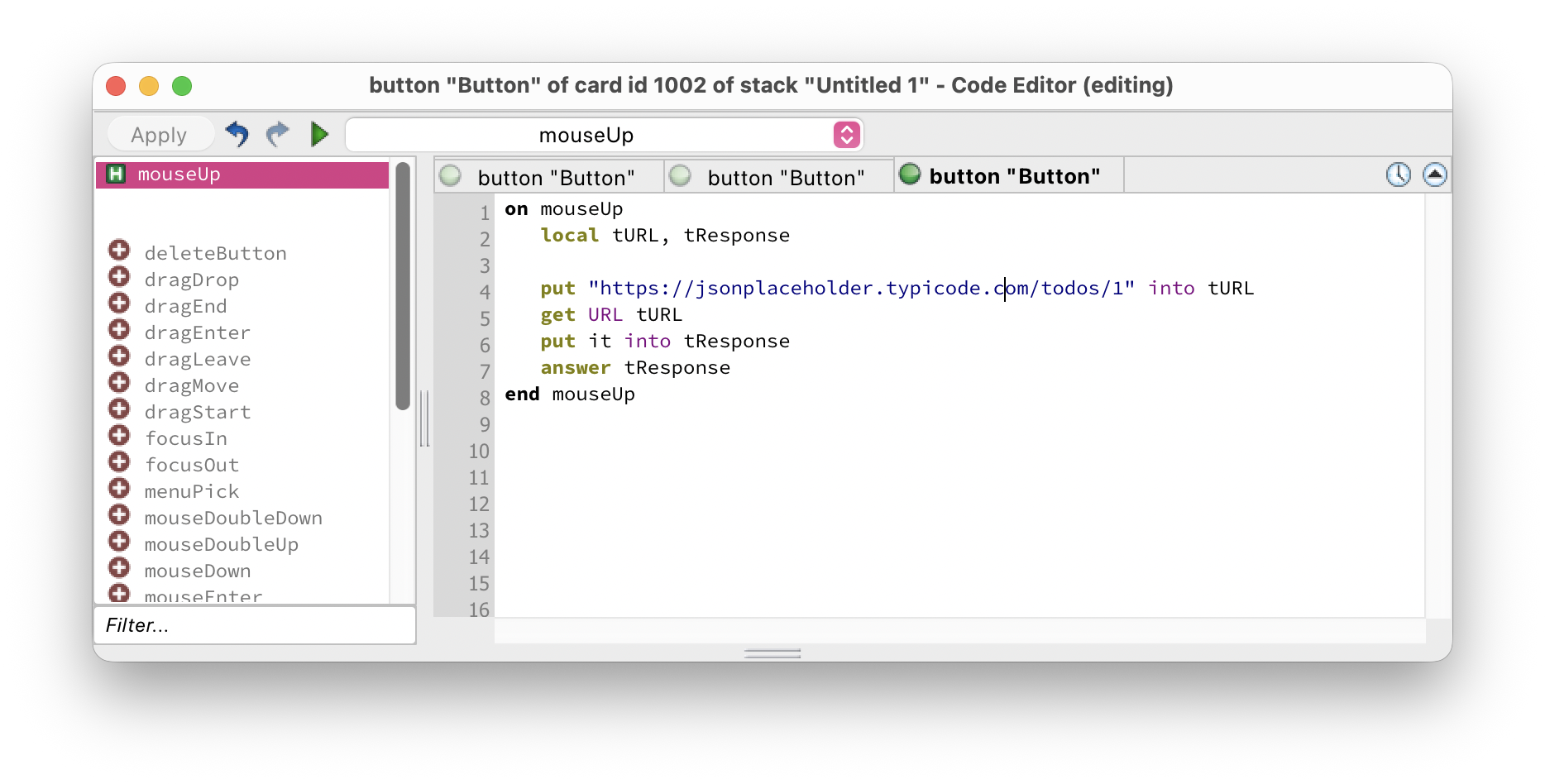
get URL tURL is synchronous — HyperXTalk waits for the response before continuing. The raw response body lands in it, which you immediately store in a local variable before doing anything else with it.
jsonplaceholder.typicode.com) — a free, public test API that returns realistic fake data. It's perfect for learning and prototyping without needing your own server.
📋 Parsing JSON
Most modern web APIs return data in JSON format. HyperXTalk's JsonImport function parses a JSON string into a HyperXTalk array, letting you access individual fields by name:
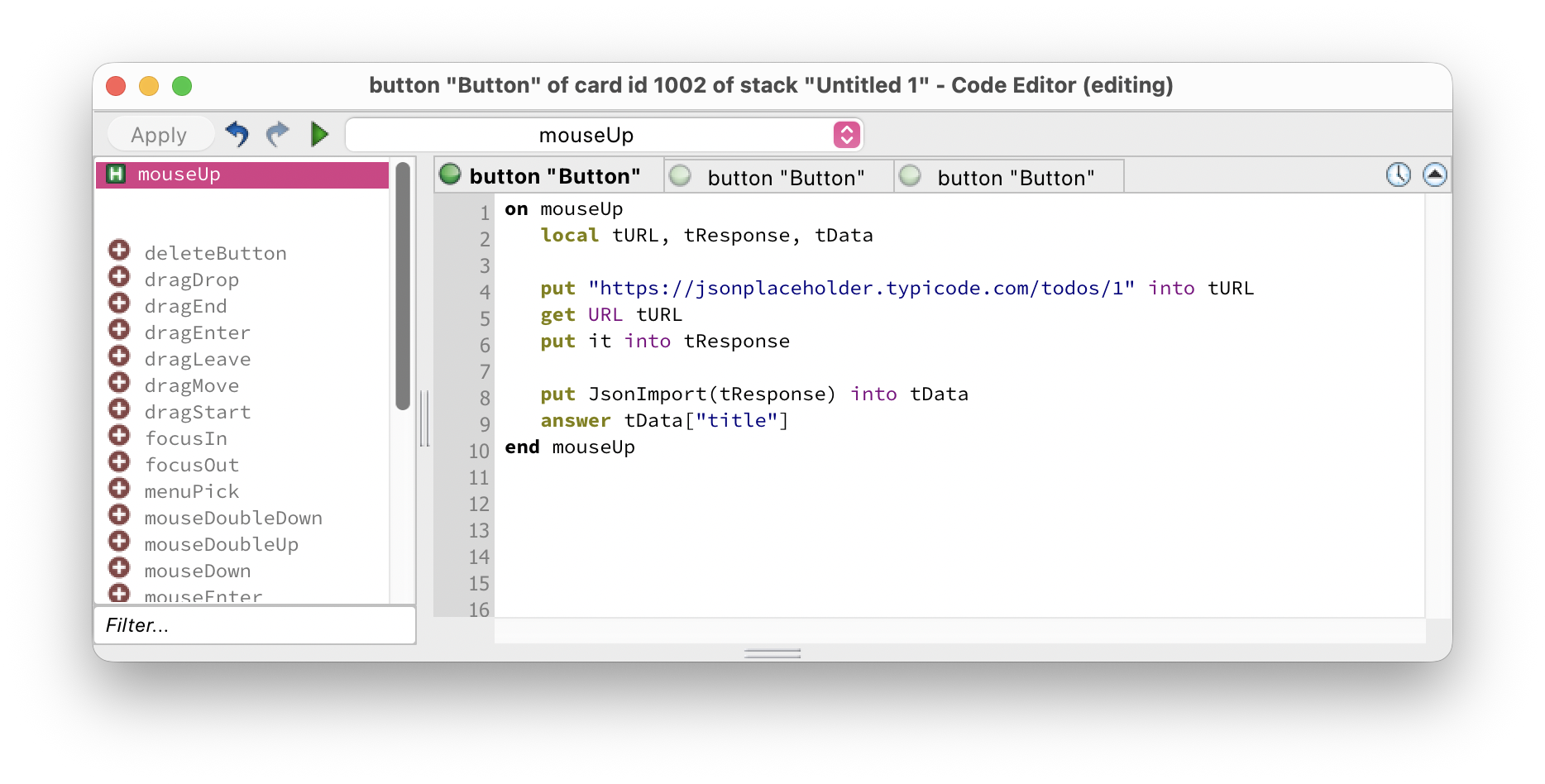
The JSON response from this endpoint looks like:
After JsonImport, the array tData contains each field accessible by its key — so tData["title"] gives you "delectus aut autem", tData["completed"] gives "false", and so on.
Nested JSON and Arrays
For JSON arrays, JsonImport creates a numerically indexed array. For nested objects, you chain the keys:
📤 POST Requests
To send data to a server — submitting a form, creating a record, sending a message — use post data to URL. You set the request headers first, then post the data:
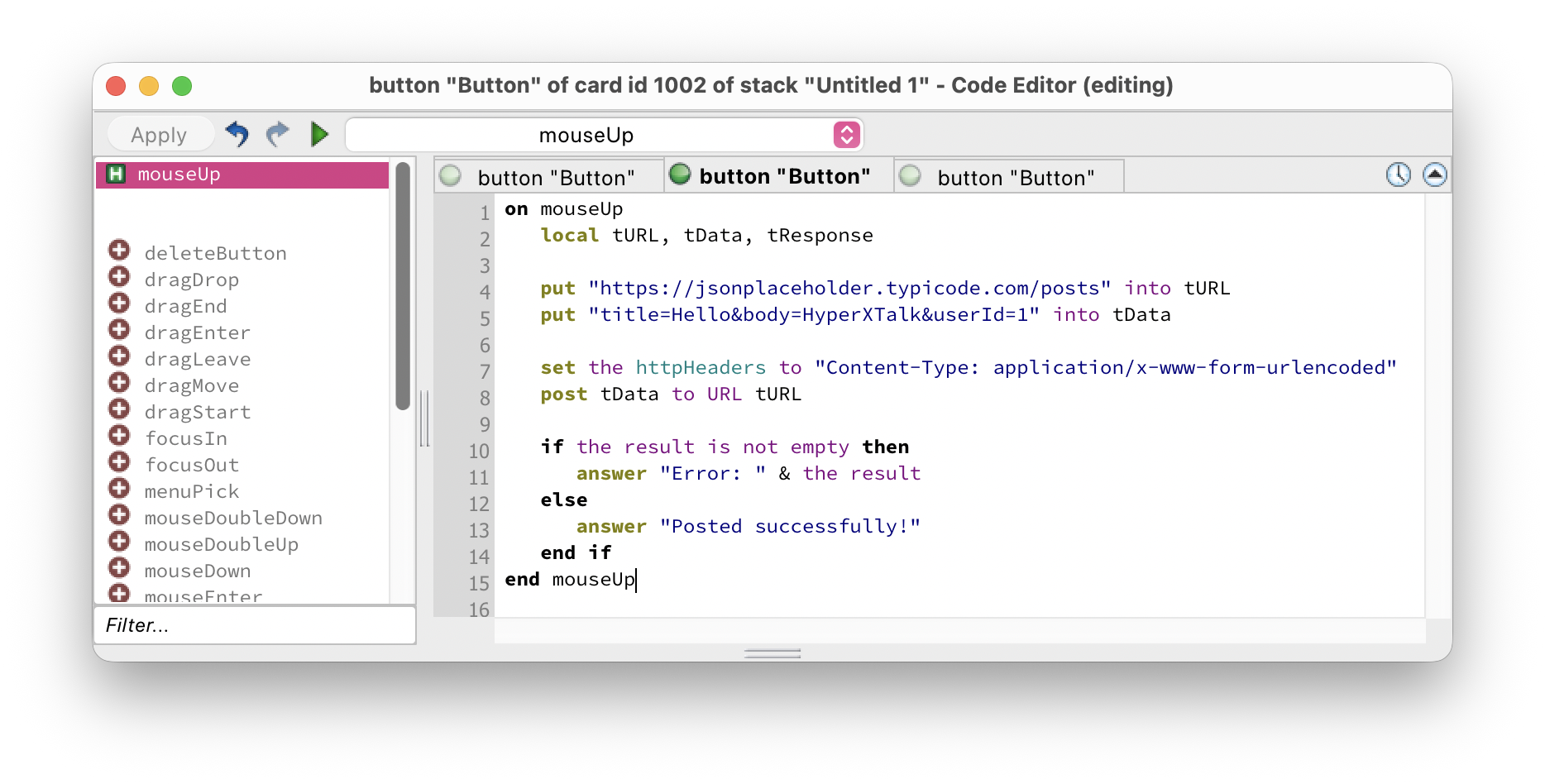
🏷️ HTTP Headers
set the httpHeaders to lets you set request headers before a GET or POST. You can set multiple headers by separating them with a return character:
set the httpHeaders to empty when you're done.
⚠️ Error Handling
Network requests can fail for many reasons — no internet connection, server errors, invalid URLs, timeouts. For POST requests, the result contains an error message if something went wrong, or is empty on success. Always check it:
For GET requests, a failed request will typically return an error string rather than the expected data. A simple defensive check is to test whether the response looks like what you expected before processing it:
In this exercise you'll build a simple app that fetches a to-do item from the JSONPlaceholder API by ID and displays its details. Click any thumbnail to enlarge it.
-
Create a new stack. Add a Field named
IDInputfor entering an item ID (1–200), a Button labelledFetch Item, and three fields with Lock text enabled:TitleOutput,CompletedOutput, andUserOutput. -
Edit the script of the Fetch Item button:
on mouseUp local tID, tURL, tResponse, tData put the text of field "IDInput" into tID if tID is empty or tID is not a number then answer "Please enter a number between 1 and 200." exit mouseUp end if put "https://jsonplaceholder.typicode.com/todos/" \ & tID into tURL get URL tURL put it into tResponse if char 1 of tResponse is not "{" then answer "Could not fetch item " & tID exit mouseUp end if put JsonImport(tResponse) into tData set the text of field "TitleOutput" to tData["title"] set the text of field "CompletedOutput" to tData["completed"] set the text of field "UserOutput" to "User " & tData["userId"] end mouseUp
GET + JsonImport
- Switch to Browse mode. Type a number between 1 and 200 and click Fetch Item. The three output fields should populate with the title, completed status, and user ID from the API.
Bonus challenge: The JSONPlaceholder API also has a /users/ endpoint. After fetching the to-do item, make a second GET request to https://jsonplaceholder.typicode.com/users/[userId] and display the user's name instead of just their ID.
get URL tURL go?it. You should immediately store it in a local variable with put it into tResponse, since it is overwritten by the next operation that produces a result.JsonImport return, and how do you access a field from it?JsonImport returns a HyperXTalk array. You access fields using the key name in square brackets — e.g. tData["title"]. For JSON arrays, items are accessed by number — e.g. tData[1]["title"].get URL and post data to URL?get URL fetches data from a server without sending a body — used for reading data. post data to URL sends a data payload to the server — used for submitting forms, creating records, or sending data to an API.set the httpHeaders to "Content-Type: application/json" & return & "Authorization: Bearer mytoken". Remember to reset with set the httpHeaders to empty when done, as headers persist between requests.the result after the post — if it is not empty, an error occurred and the result contains the error message. If it is empty, the request succeeded.