File Handling
Most real applications need to read and write files — loading configuration, saving user data, importing records, writing logs. In this lesson you'll learn how to let the user pick files and folders, read file contents into your script, write and append data to files, and check whether a file exists before trying to use it.
- Use
answer fileandask fileto let users pick files - Use
answer folderto let users pick a folder - Read file contents with
open file,read from file, andclose file - Write and append to files with
open file for text appendandwrite to file - Check whether a file exists with
there is a file - Build reliable file paths using
specialFolderPath
📂 File and Folder Pickers
Rather than asking users to type file paths by hand, HyperXTalk provides built-in dialogs for picking files and folders. The chosen path is placed into the special variable it, and the result is set to "Cancel" if the user dismisses the dialog without choosing anything.
answer file — Open a file
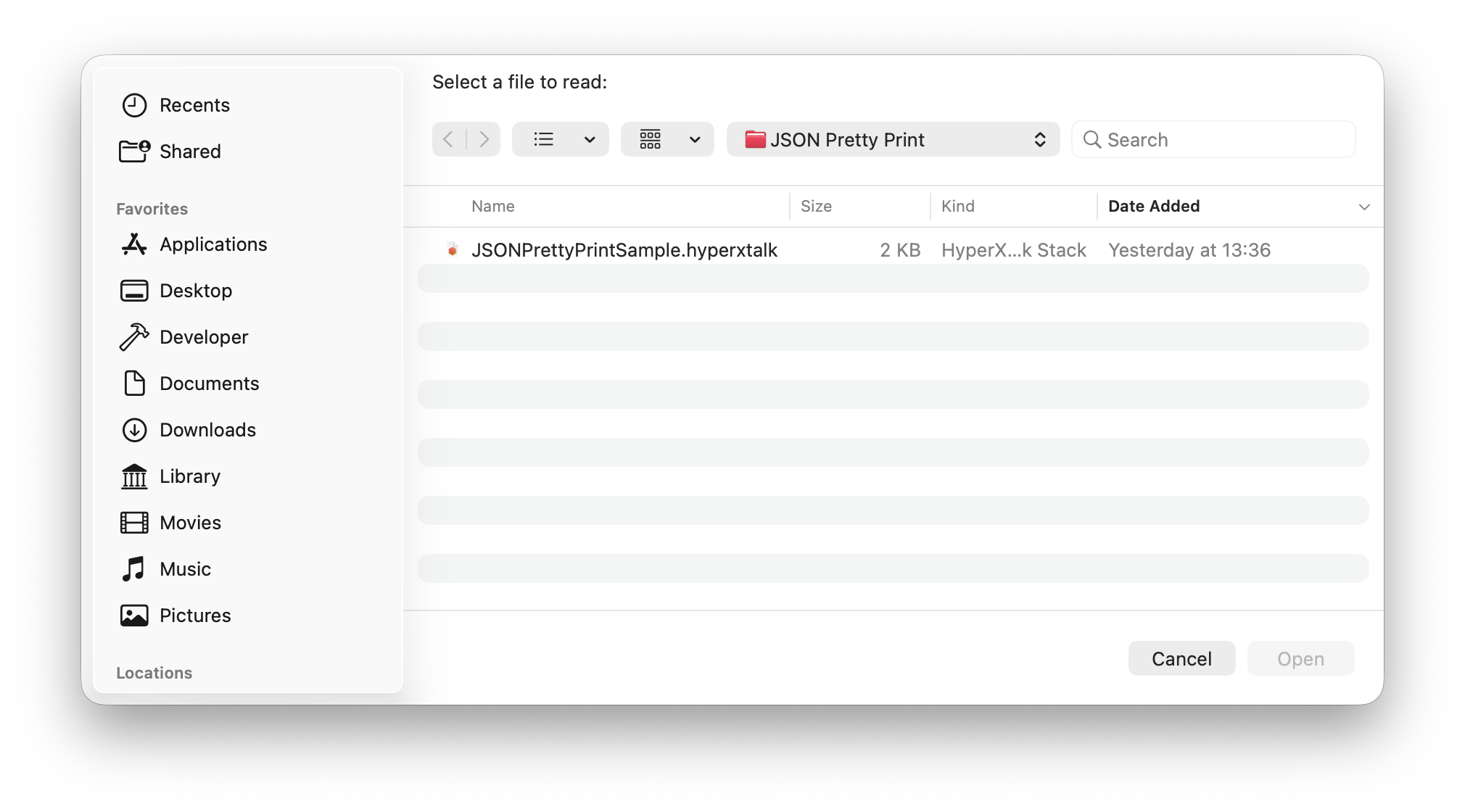
answer file shows the system's standard open file dialog. The prompt string appears at the top of the dialog:
ask file — Save a file
ask file shows the system's save dialog. You can suggest a default filename as the second argument:
answer folder — Pick a folder
answer folder shows a folder picker rather than a file picker — useful when you need a directory to save multiple files into:
the result is not "Cancel" before using the path from any picker. If the user clicks Cancel, it will be empty and trying to open or write to an empty path will cause an error.
📖 Reading Files
Reading a file is a three-step process: open it, read from it, then close it. The contents are placed into it after the read:
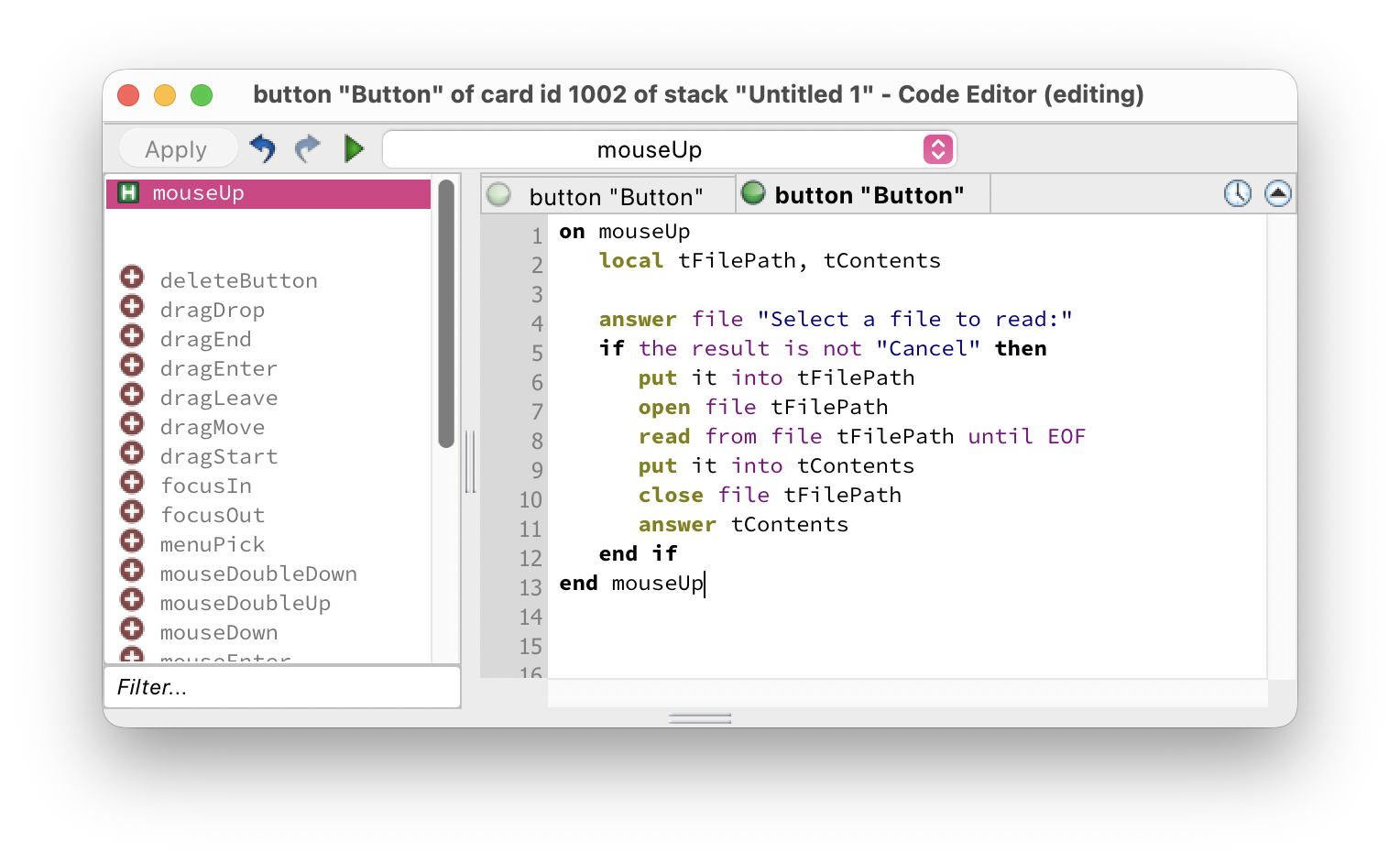
read from file tFilePath until EOF reads the entire file at once. EOF means End Of File — HyperXTalk keeps reading until there's nothing left. The complete file contents land in it, which you then store in a variable for use.
repeat for each line tLine in tContents — a great combination for importing CSV data or processing log files.
✏️ Writing Files
Writing to a file follows the same open/write/close pattern. Opening a file for text append adds content to the end of an existing file, or creates the file if it doesn't exist yet:
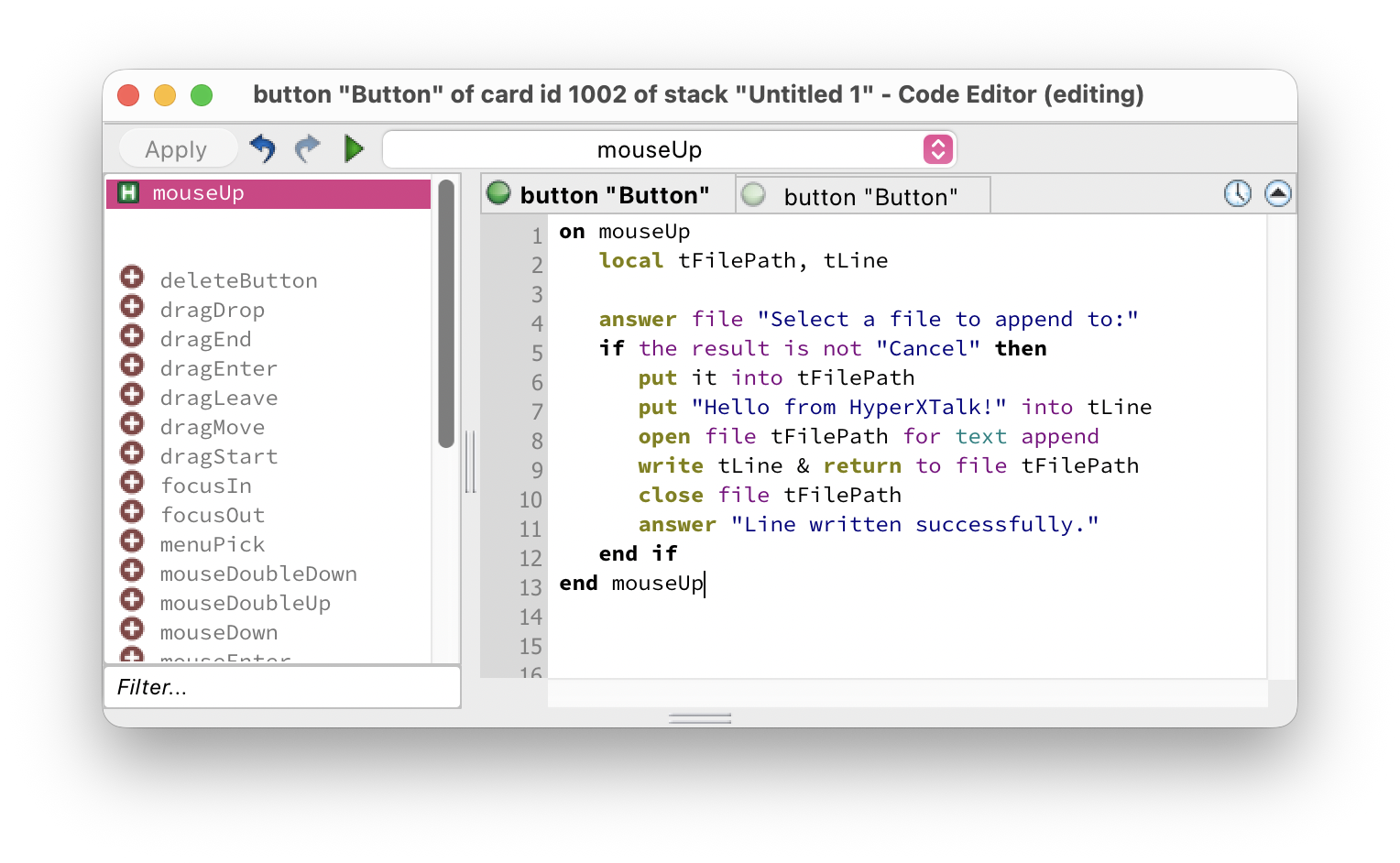
Notice & return appended to the line being written. Without it, each write would run straight into the next with no line break. Adding return ensures each piece of content lands on its own line.
🔍 Checking Whether a File Exists
Before opening or writing to a file at a known path, it's good practice to check whether it already exists. HyperXTalk makes this very readable:
You can also check for folders:
📍 Building File Paths
When you need a file at a known location rather than letting the user pick one, use specialFolderPath to get a platform-appropriate path. This ensures your application works correctly on macOS, Windows, and Linux:
specialFolderPath rather than hardcoding paths like /Users/emily/Documents. Hardcoded paths break on other users' machines and on other platforms.
In this exercise you'll build a note logger — the user types a note, clicks Save, and it gets appended to a log file in their Documents folder. They can also load the log to see all their previous notes. Click any thumbnail to enlarge it.
-
Create a new stack. Add a Field named
NoteInputfor typing notes, a scrolling Field namedLogDisplaywith Lock text enabled, and two buttons: Save Note and Load Log. -
Edit the script of the Save Note button:
on mouseUp local tNote, tLogPath put the text of field "NoteInput" into tNote if tNote is empty then answer "Please type a note first." exit mouseUp end if put specialFolderPath("documents") \ & "/HyperXTalkNotes.txt" into tLogPath open file tLogPath for text append write tNote & return to file tLogPath close file tLogPath set the text of field "NoteInput" to empty answer "Note saved!" end mouseUp
File writing pattern
-
Edit the script of the Load Log button:
on mouseUp local tLogPath, tContents put specialFolderPath("documents") \ & "/HyperXTalkNotes.txt" into tLogPath if there is a file tLogPath then open file tLogPath read from file tLogPath until EOF put it into tContents close file tLogPath set the text of field "LogDisplay" to tContents else answer "No notes saved yet." end if end mouseUp
File reading pattern
- Switch to Browse mode. Type a note and click Save Note, then click Load Log to see it appear in the LogDisplay field. Add several more notes and reload to confirm they all accumulate.
Bonus challenge: Add a Clear Log button that uses ask file to let the user choose where to save a backup copy before deleting the notes file. Hint: write the contents to the new location first, then use delete file tLogPath to remove the original.
answer file and ask file?answer file shows an open file dialog for selecting an existing file to read. ask file shows a save dialog for choosing where to save a new file. Both place the chosen path into it.read from file tFilePath until EOF?it. You then store it in your own variable with put it into tContents before doing anything else, since it gets overwritten by the next operation that produces a result.for text append do differently from a regular open?if there is a file tFilePath then — this returns true if the file exists at the given path. The equivalent for folders is if there is a folder tFolderPath then.specialFolderPath instead of hardcoding a path?/Users/emily/Documents only work on one specific machine. specialFolderPath returns the correct path for the current user on any machine and on any supported platform — macOS, Windows, and Linux all use different folder structures.