Variables and Data Types
You've been using variables since Lesson 3. Now it's time to go deeper — understanding what kinds of data HyperXTalk works with, how to manipulate text and numbers, and how to build and process lists. These are the building blocks of almost every real application you'll write.
- Understand how HyperXTalk handles different types of data
- Manipulate text using string functions
- Perform arithmetic and use mathematical functions
- Build, read, and modify comma-separated lists
- Convert between text and numbers
📦 Data Types in HyperXTalk
Unlike many programming languages, HyperXTalk doesn't have strict data types. Every value is stored as text under the hood — but HyperXTalk is smart enough to treat it as a number when you do arithmetic, as a date when you compare dates, and as a list when you use item functions.
This means you rarely need to worry about converting between types — HyperXTalk figures it out:
empty represents a variable or field that contains nothing at all — equivalent to an empty string "". Use if tVariable is empty then to check for it.
📝 Working with Text
HyperXTalk has a rich set of tools for working with text. You can measure it, slice it, search it, and transform it — all in plain English:
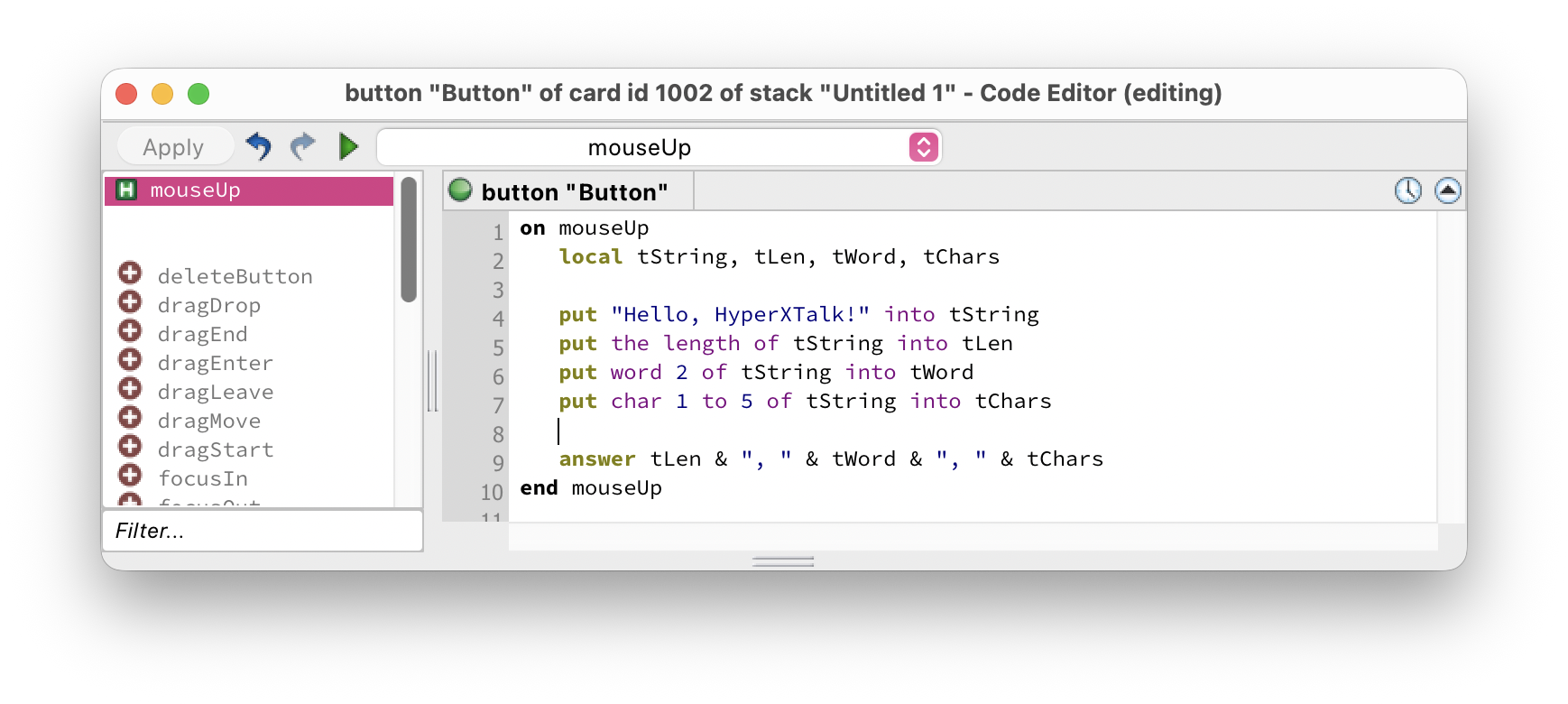
Common Text Operations
"hello" = "Hello" is true. If you need case-sensitive comparison, use if tA is tB with set the caseSensitive to true first.
🔢 Working with Numbers
HyperXTalk supports all standard arithmetic operators and a useful set of mathematical functions:
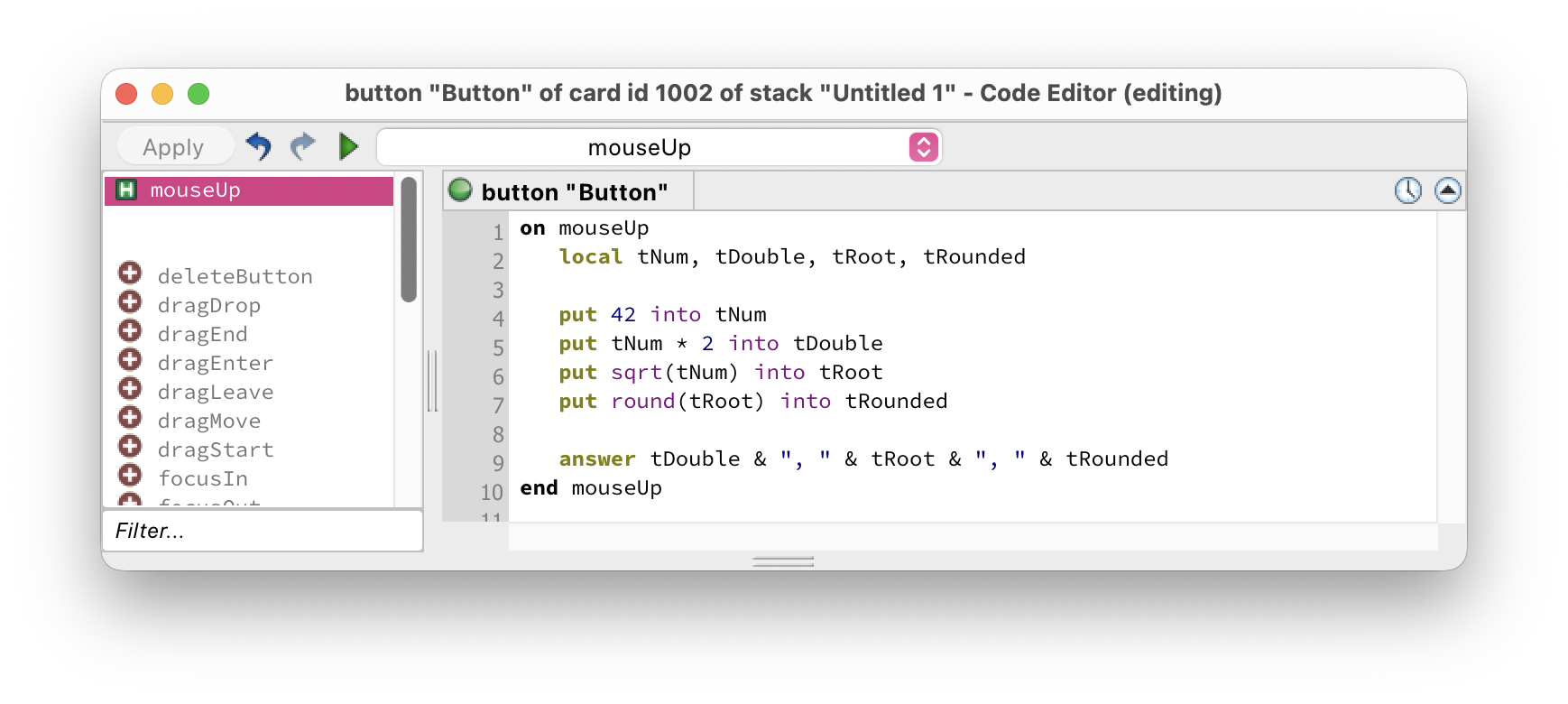
Arithmetic Operators
+ addition · - subtraction · * multiplication · / division · ^ power · mod remainder
Shorthand Arithmetic
Useful Math Functions
📋 Working with Lists
In HyperXTalk, a list is simply a text value with items separated by commas. There's no special list type — any variable can become a list just by putting comma-separated values into it:
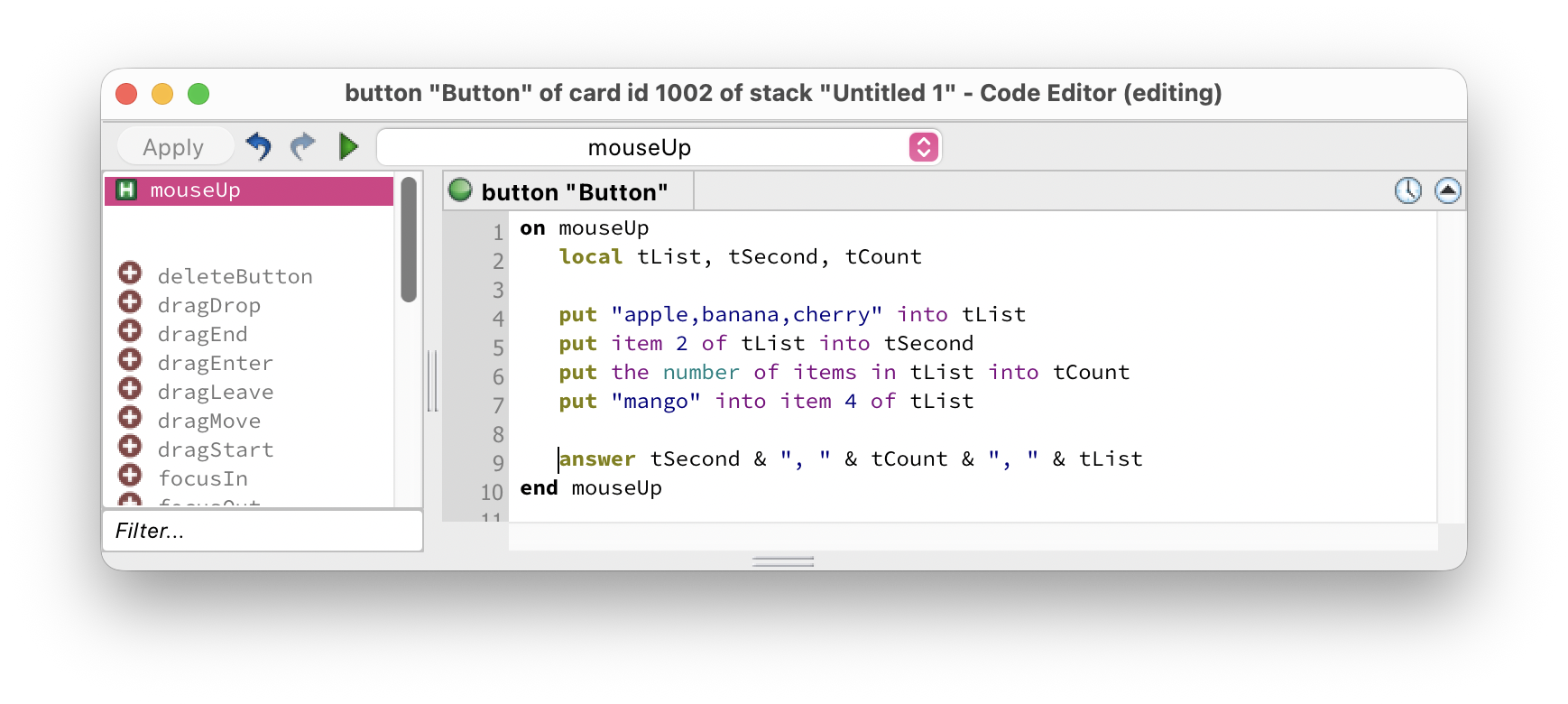
Common List Operations
item functions will work on lines instead: set the itemDelimiter to return.
🔄 Type Conversion
Because HyperXTalk handles types automatically, conversion is usually just a matter of using the right function or operation:
In this exercise you'll build a simple shopping list app that lets users add items, shows a count, and calculates a summary. Click any thumbnail to enlarge it.
-
Create a new stack with a Field named
ItemInputfor typing new items, a Button labelledAdd Item, a scrolling Field namedShoppingListwith Lock text enabled, and a Field namedSummarywith Lock text enabled. -
Edit the script of the Add Item button:
on mouseUp put the text of field "ItemInput" into tItem if tItem is empty then answer "Please type an item first." exit mouseUp end if -- Add item to the list field put tItem & return after field "ShoppingList" -- Update summary put the number of lines of field "ShoppingList" \ into tCount set the text of field "Summary" \ to tCount & " item(s) on your list." -- Clear the input set the text of field "ItemInput" to empty end mouseUp
String operations
List operations
- Switch to Browse mode and add several items. The Shopping List field should grow with each addition and the Summary should update the count.
Bonus challenge: Add a Clear List button that sets both fields to empty and resets the summary to "0 item(s) on your list."
tString?put char 1 to 5 of tString into tResult — or just char 1 to 5 of tString anywhere you need the value.random(n) — e.g. put random(6) into tDice simulates a six-sided die roll, returning a number from 1 to 6."apple,banana,cherry" is a three-item list. You can change this with set the itemDelimiter to return to work with line-separated data instead.if tValue is a number then — this checks whether the value can be treated as a number. Useful for validating user input before doing arithmetic.